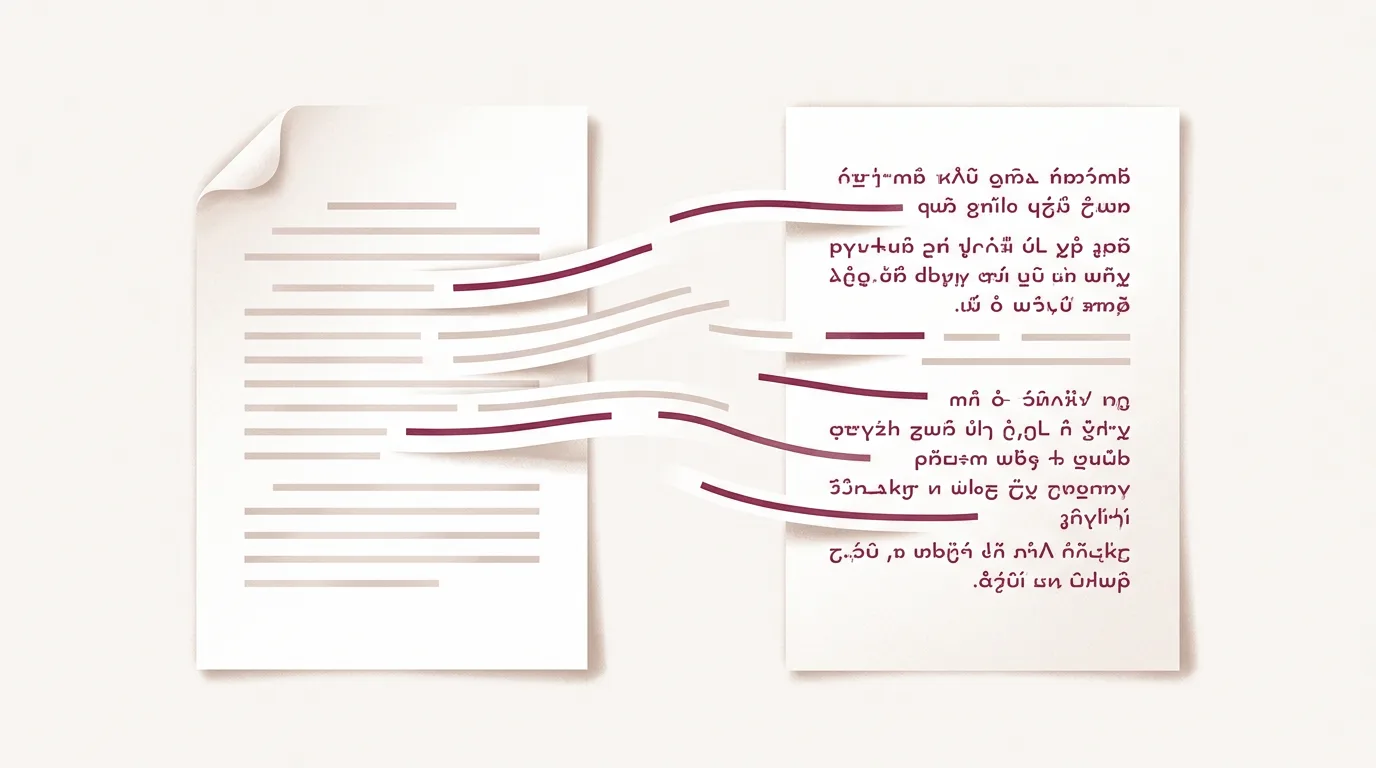
Translating a PDF is one of the more frustrating file-format problems authors run into when bringing a book to a new language. PDFs look simple from the outside, but internally they are a uniquely rigid format that does not behave like a Word document or a web page. This guide explains why PDF translation is harder than most authors expect, the two different kinds of PDF you can have, what to expect from each, and the trade-offs in the final output.
If you have a finished manuscript you want translated into another language and your master file is a PDF, this article is for you.
A PDF is a print-optimized format. Everything in the file is fixed to a specific position on a specific page. Where a Word document says "here is a paragraph, and here is the next paragraph," a PDF often says "here is a letter at these coordinates, and here is another letter at these coordinates." There is frequently no built-in notion of paragraphs, columns, or reading order that a translation tool can rely on.
That rigidity creates two distinct problems:
Both problems are solvable. They are also the reason PDF translation feels harder than it should, even though it is one of the most common file formats authors arrive with.
Before translating anything, identify which kind of PDF you have, because the translation approach differs.
| Type | What it is | Can you copy-paste text? |
|---|---|---|
| Scanned PDF | A collection of images of each page (a book that was scanned) | No |
| Text PDF | Real text characters rendered in a font, produced by a computer | Yes |
Open the file in any PDF reader and try to select a sentence. If you can copy the text out, you have a text PDF. If your selection turns into a rectangle around an image and nothing comes out when you paste, you have a scanned PDF.
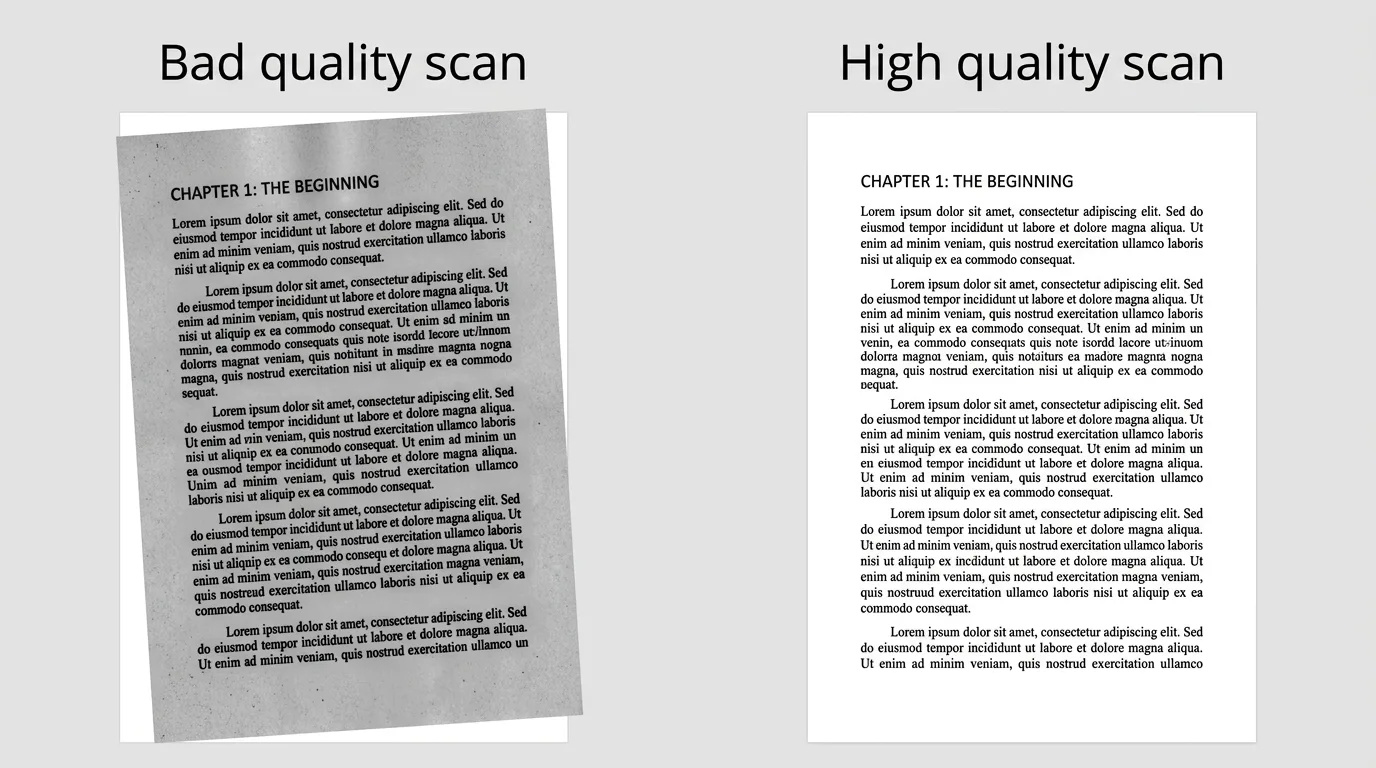
A scanned PDF contains no actual text, only pictures. To translate it, the text has to be extracted from those images first. This is done with Optical Character Recognition (OCR), software that analyzes each page image, recognizes individual characters ("this looks like an A, this looks like a B"), and also detects structure (paragraphs, tables, reading order).
The quality of the source scans matters a great deal.
translateabook.com uses state-of-the-art OCR technology, chosen based on recent benchmarks and updated as the technology improves. In practice that means it handles cases simpler OCR tools struggle with, even on complex layouts and tables, including books that mix figures and tables into the prose, have multi-column layout and explainers, images...
Even strong OCR makes occasional mistakes on difficult files. A useful side effect of using an AI translator is that many of those mistakes get corrected during translation.
For example, if the OCR misreads an "I" as an "L" on a blurry word, the extracted text will have a typo. But the translation AI understands content, recognizes which word was intended in context, and produces the correct word in the target language. The typo disappears without anyone needing to fix it manually.
Bigger errors are different. If a section comes out as gibberish from OCR because the image is badly damaged or extremely low resolution, the corresponding section of the translation can be gibberish too. This is rare and depends on the condition of the source file.
If your PDF has copy-pasteable text, you have more options. The default approach in translateabook.com is similar to the OCR pipeline, but with the character-recognition step removed. Because the text is already real characters, there is no risk of OCR typos, and detection quality is higher overall.
That said, text PDFs are still rigid. As mentioned earlier, many PDFs only specify where each letter sits on the page, with no explicit "paragraph" or "block" boundaries. So the file still needs a layout-detection pass to figure out which letters belong to which paragraph, where the tables are, and what the reading order should be.
After detection, the translation step runs. translateabook.com translates books in Author Mode, which reads the whole book up front and builds a translation guide (covering tone, character names and relationships, key terminology, and typography rules) before any sentence is translated. Locking those decisions in advance keeps the translation consistent from page one to the last page, which avoids the tone drift you can get when AI translates a book in disconnected chunks.
This is the part most authors do not expect, so it is worth being explicit: the layout of a translated PDF will not be identical to the original. This is true in every PDF pipeline, not just translateabook.com's.
The reason is straightforward. Different languages take different amounts of space:
A page in a PDF has a fixed amount of space. If the source language fits exactly on one page and the target language is 20% longer, the translation simply does not fit. A naïve rebuild of the PDF would either overflow off the page or cut the end of the text off.
The correct fix is to let the text reflow: when translated text is longer than the original, it should flow onto the next page (or push everything that follows down by a few lines), rather than overflow into empty space. The output file should be able to add pages as needed.
This is why translateabook.com extracts a PDF semantically. A paragraph becomes a paragraph, a table becomes a table, an image stays an image, and the output is rebuilt with those blocks placed in their natural reading order. The result looks good and reads correctly. The exact visual arrangement is not identical to the original page.
For most book translations this is fine, especially for novels and other prose-heavy books where the page-by-page arrangement is not load-bearing.
Even though the visual layout changes, the important elements carry through in both the scanned-PDF and text-PDF pipelines:
What changes is the exact positioning on each page, not the content of the book. Readers get the same book in another language, presented in a layout that fits the target language's natural length.
When you download a translated PDF from translateabook.com, the output is a PDF. If you want to edit the layout further, for example to adjust margins, change typography, or tweak page breaks for print, you can convert the result to an editable format like a Word document with one click directly from the dashboard.
This gives you full control over the final layout once the translation work itself is done, without having to do any of the translation work in Word.
There is one more option worth knowing about, though it is currently experimental: convert the PDF to a Word (.docx) file first, then translate the Word file.
Tools like cloudconvert.com (which we also use internally for some conversions) can do the PDF-to-DOCX step. The catch is that PDF-to-Word conversions usually look fine visually but are very messy internally. translateabook.com's Word-document analysis can handle most messy DOCX files, but sometimes the conversion produces a file that is too disorganized to translate cleanly, and the result will not look good.
When the conversion does work, the upside is that it preserves more of the original layout in the final translated PDF.
This approach works best when source and target languages are close in length. English to French is usually fine. English to Chinese, where the space ratio is very different, often will not look great no matter which pipeline you use.
If your source PDF has a complex layout that you specifically want to recreate, this route is worth trying, with the understanding that you may need some manual editing afterwards.
PDFs vary so widely in quality and complexity that no one can tell you upfront exactly how your specific book will come out without seeing the file. The best way to remove that uncertainty is to run a free preview on translateabook.com.
The preview shows you what the output looks like for your specific file (scanned or text, simple or complex layout) before you pay anything. If the result looks good, you can proceed with confidence. If the file has issues that need addressing first (a bad scan, an unusual layout, embedded fonts that confuse the extractor), you find out before committing.
This is by far the lowest-risk way to translate a PDF book, and it is the workflow we recommend to every author who arrives with a PDF master file.
Translating a PDF is harder than translating a Word or EPUB file, but it is well-understood territory once you know what kind of PDF you have and what trade-offs to expect. The short version:
If you are still weighing AI translation against working with a traditional translator more broadly, our comparison of AI book translation versus human translators covers cost, timeline, and quality side by side.
Yes. The text is extracted from the page images using OCR (Optical Character Recognition) before translation. The quality of the result depends on the quality of the scans. Clear, well-lit scans with standard typography produce excellent results. Old, faded, or low-resolution scans can introduce small errors, though many of those are corrected automatically by the AI translation step.
Open the file in any PDF reader and try to select a sentence with your cursor. If you can copy the text and paste it elsewhere, you have a text PDF. If the selection only draws a rectangle and nothing comes out when you paste, the page is an image and you have a scanned PDF.
No, the page-by-page layout will not be identical. The translated text takes a different amount of space than the original (English to French is usually longer, English to Chinese is usually shorter), so the text has to reflow across pages. The structure, paragraphs, tables, and images are all preserved, and the result reads correctly. The exact positioning on each page changes.
Usually not. The target language rarely takes the exact same space as the source. Translating English to French often produces a longer translated PDF with more pages. Translating English to Chinese typically produces a shorter one. Pages are added or removed as needed so nothing is cut off.
Yes. When you download a translated PDF from translateabook.com, you can convert it to a Word (.docx) file with one click directly from the dashboard. This is useful if you want to adjust the layout further, change typography, or tweak page breaks for print.
Sometimes, but it is experimental. PDF-to-Word conversions tend to look fine visually but are very messy internally. translateabook.com handles messy Word files well, but some conversions are too disorganized to translate cleanly. The approach works best when source and target languages are close in length (English to French is usually fine, English to Chinese often is not). For most files, the default PDF pipeline gives a better result.
